Set up a Senior's Dashboard tablet
This turns an Android tablet (Android 10 or newer) into a dedicated Senior's Dashboard screen that starts by itself, stays on it and updates itself. It takes about 10 minutes.
This erases the tablet. Use a new tablet or one with nothing on it you need.
Afterwards it can only run Senior's Dashboard. To use it as a normal tablet again you'd have to factory-reset it.
1. Factory reset
New tablet: just switch it on. Otherwise: Settings → System → Reset options → Erase all data (factory reset). Keep it plugged in.
2. Scan the code
- On the first Welcome screen, tap the same spot on the screen 6 times quickly.
- A QR scanner opens (it may first ask you to connect to Wi-Fi: do that).
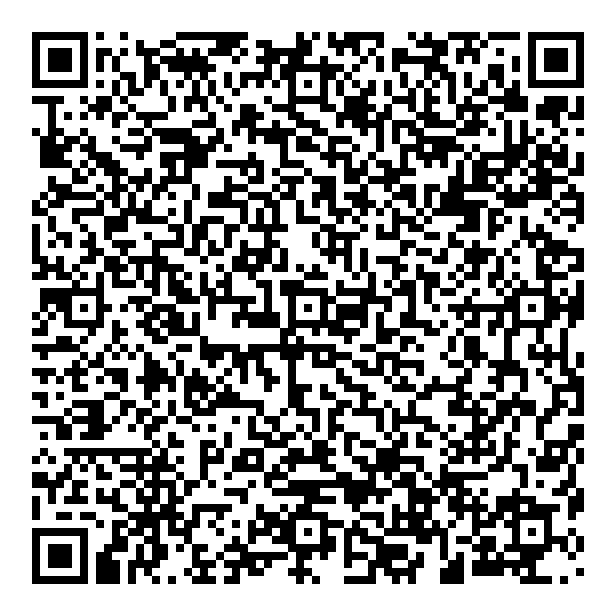
- Point the tablet's camera at this code.
- Follow the prompts. The tablet downloads Senior's Dashboard 0.13.3 and sets itself up. Don't add a Google account when asked: skip it.
Printable code: qr.svg. Tapping 6 times does nothing? Some tablets need you to wait on the Welcome screen a few seconds first.
3. Sign in inside Senior's Dashboard
When Senior's Dashboard opens, go to Settings and sign in with Google. That connects the calendar and starts your 14-day free trial, or turns on the license you've bought for that Google account. Then set the home location, emergency contact and the other options in Settings.